Roku DJ Channel Setup for Dance Music Fans
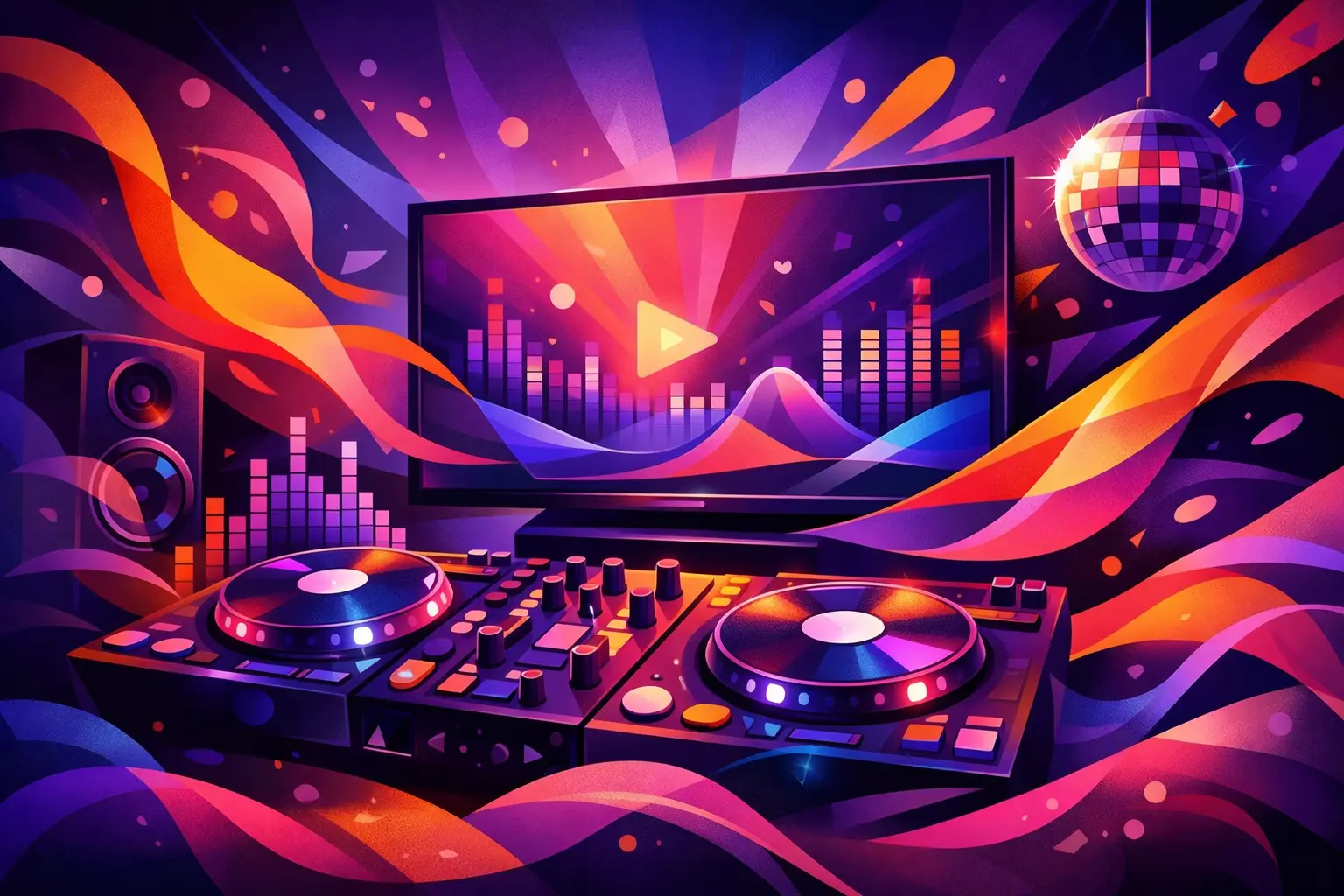
Your TV can be more than background noise between nights out. A proper Roku DJ channel setup turns the biggest screen in the room into a home base for live sets, festival energy, artist interviews, rooftop sessions, and late-night music discovery. Whether you are tuning in before a show, hosting friends, or digging for your next favorite selector, a few smart setup choices make the experience feel much closer to the scene.
This is a practical guide for building a better dance music experience on Roku, from finding the right channels to getting your sound, watchlist, and connection ready for a full set.
Start Your Roku DJ Channel Setup With the Basics
Before searching for channels, make sure the Roku device itself is current and connected reliably. Open Settings, select System, then System update, and check for updates. Roku menus can shift slightly between device generations, but keeping the operating system current helps prevent common install, sign-in, and playback problems.
A stable internet connection matters more for DJ video than many people expect. Fast-moving lighting, crowd shots, and long continuous performances can expose weak Wi-Fi quickly. If your Roku is far from the router, try moving the router higher, reducing nearby interference, or using a wired Ethernet connection if your Roku model supports it. For most HD programming, a dependable connection is more valuable than a huge advertised speed that drops out every few minutes.
You also want to check the TV’s audio settings before the first set starts. If you use a soundbar, receiver, or powered speakers, confirm that Roku audio is routed to the right output. A DJ mix that sounds thin through built-in TV speakers can come alive with proper low end and stereo separation. Just keep the bass balanced, especially in apartments or shared spaces. Great sound should bring the club feeling home, not start a building-wide group chat.
How to Find DJ Channels on Roku
From the Roku Home screen, open Streaming Store or use Roku Search. Search broad terms first, including “DJ,” “electronic music,” “dance music,” “house music,” “techno,” “EDM,” and the names of artists or media brands you already follow. Some music programming is listed under broad entertainment categories rather than a dedicated electronic music category, so trying several terms can reveal more options.
When you find a channel that fits your sound, open its details page before adding it. Look at the description, recent release information, ratings, and whether an account or subscription is required. Free channels can still require registration, while paid services may offer limited previews or a trial period. There is no single best option for every fan. A listener who wants marathon video sets may prioritize an archive and live programming, while someone focused on underground discovery may want channels that rotate independent artists and local scenes.
Select Add channel to install it. Roku may ask for your account PIN if you have purchase controls enabled. Once installed, the channel should appear on your Home screen. If it does not show up right away, return to the Home screen, wait a moment, and check again. A manual system update can also force the device to refresh its channel list.
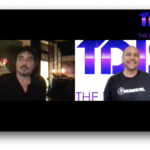
For fans looking for a deep, always-on archive of electronic music performances and industry conversations, The DJ Sessions brings together live DJ culture, artist storytelling, and specialty session formats built for the screen as much as the speakers.
Rearrange Channels for Fast Access
The best setup is the one you actually use. Highlight a channel on the Roku Home screen, press the star button on the remote, and choose Move channel. Put your go-to DJ programming near the top, ideally next to the music, video, or livestream apps you open most often.
This small move matters when a friend says, “Put on a set,” or when you have 10 minutes before leaving for the club. You should not have to scroll past a wall of apps to get to the music.
Sign In, Activate, and Check Your Access
Many Roku channels use an activation process. You open the channel on your TV, receive a code, then enter that code through the provider’s activation page on a phone or computer. Follow only the instructions displayed inside the official Roku channel. Avoid entering Roku credentials or payment details on unfamiliar pages reached through unsolicited messages or search ads.
If a channel asks you to create an account, use an email address you can access immediately. Activation emails sometimes land in promotions, junk, or spam folders, particularly when you are setting up a new account minutes before a livestream. Confirm your membership tier, if applicable, before assuming every episode or live broadcast is included.
This is also the moment to check geographic availability. Music rights, live event access, and video catalogs can vary by region. If a specific show does not appear in the app, it may be scheduled for a later release, restricted in your location, or available only within a certain membership level. That is frustrating, but it is not always a setup failure.
Set Up Sound for DJ Sets, Not Just TV Dialogue
Electronic music is built on details: the kick drum’s weight, the sweep into a transition, the texture of a vocal chop, and the room sound around a live crowd. Roku can carry a strong audio signal, but the final result depends on your TV, speakers, and settings.
Start with your TV sound mode. Movie modes can exaggerate effects, while speech modes may reduce bass and dynamics. Standard, music, or a neutral custom setting is usually a better starting point for DJ performances. Disable aggressive volume leveling if it makes transitions feel flat. If your soundbar offers a surround mode, test it against stereo rather than assuming more processing is better. Many DJ videos are mixed for stereo, and artificial surround can smear the center image.
If the mix sounds delayed compared with the video, look for audio delay or lip-sync controls in the TV, receiver, or soundbar settings. Make small adjustments and test them with a performance where you can clearly see the DJ speaking or working a microphone. Bluetooth headphones can be convenient for late sessions, but latency and reduced bass response vary by device. They are great for private viewing, less ideal for judging a full club mix.
Build a Watchlist That Matches Your Mood
A Roku DJ channel becomes much more useful once you stop treating it like random television. Use favorites, saved episodes, reminders, or continue-watching features when they are available. Create your own rhythm around the programming: high-energy sets for a workout, deeper house or downtempo for work sessions, interviews for the drive to an event, and live broadcasts for a weekend pregame.
Do not skip the interviews and behind-the-scenes formats. A performance may introduce you to an artist, but a conversation can explain the label, city, gear choices, influences, and relationships behind the music. That context is part of what separates dance music culture from a playlist on shuffle.
If you share the Roku with roommates or family, consider keeping a dedicated music row near the top of the Home screen. It prevents your carefully built selection from getting buried under everyone else’s streaming habits. It also makes the TV feel ready for the next session instead of requiring a fresh search every time.
Fix Common Roku DJ Channel Problems
When a channel will not load, start simple. Exit the app, reopen it, and restart the Roku from Settings under System. A full restart clears temporary issues more effectively than repeatedly pressing the remote buttons. If playback still fails, check whether other streaming channels work. If they do not, the issue is likely your internet connection or Roku device rather than one DJ channel.
For buffering, lower video quality if the channel provides that setting, pause briefly to let the stream build a buffer, and reduce other heavy activity on your network. Large game downloads, video calls, and multiple 4K streams can compete for bandwidth. A wired connection is worth considering if you regularly watch long live broadcasts and your Wi-Fi struggles.
If a channel is installed but missing new episodes, check for a channel update. Highlight the channel, press the star button, and select Check for updates if that option appears. You can also remove and reinstall the channel, although you should confirm your sign-in details first. Removing a channel may clear local settings and require activation again.
Audio problems usually come down to one of three things: the TV output setting, a soundbar handshake issue, or volume processing. Test the Roku through the TV speakers, then reconnect the external audio equipment. That quick comparison tells you where the problem lives without turning troubleshooting into a three-hour tech support set.
Your Roku setup should make dance music easier to experience, not harder to reach. Put the channels you trust within one click, tune the sound until the low end feels right, and leave room in your rotation for artists you have never heard before. The next great set may be waiting in the archive while you are deciding what to watch.
Latest Shows
Latest news
Gallery
-






Comments
This post currently has no comments.